

Essential software for a first server setup
Stepping into the realm of VDS hosting for the very first time can feel like wandering through an unfamiliar labyrinth—terminals blinking, configurations whispering mysteries, security looming like an unsolved riddle. It’s perfectly natural. To ease that initial turbulence, here’s a carefully curated ensemble of utilities that will not only steady your footing but also elevate both usability and resilience.
Table of Contents
Fail2Ban — Best Security Tool for VPS Servers
At the forefront of server defense stands Fail2Ban, a vigilant sentinel designed to shield your system from malicious intrusions. It scrutinizes logs with unwavering attention and reacts decisively—blocking IP addresses that exhibit suspicious behavior, such as brute-force login attempts.
Installation unfolds simply:
sudo apt update
sudo apt install fail2ban -y
Once installed, clone the default configuration and tailor it:
sudo cp /etc/fail2ban/jail.conf /etc/fail2ban/jail.local
sudo nano /etc/fail2ban/jail.local
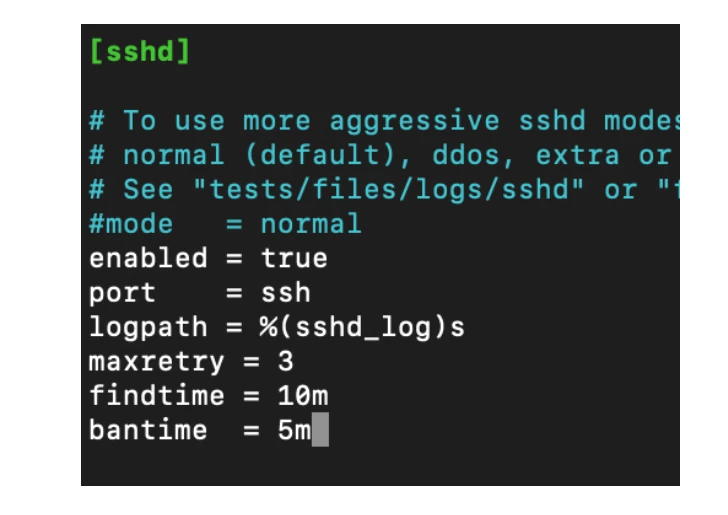
Within the [sshd] section, refine the rules to enforce discipline:
[sshd]
enabled = true
port    = ssh
logpath = %(sshd_log)s
maxretry = 3
findtime = 10m
bantime = 5m- Enable protection for SSH access
- Limit failed attempts
- Define time windows and ban durations
After saving, awaken the service:
sudo systemctl restart fail2ban
From this moment onward, repeated failed login attempts will trigger temporary exile—an elegant deterrent against intrusion.
💡 Pro Tip (SEO + Value):
Combine Fail2Ban with a firewall (UFW) for layered security.
UFW — Simple Firewall for Linux Servers
UFW (Uncomplicated Firewall) acts as a refined interface to Linux’s robust but intricate iptables. It grants you surgical control over incoming and outgoing traffic without demanding arcane knowledge.
Install it with ease:
sudo apt install ufw
Before activating, allow essential access—especially SSH:
sudo ufw allow 22/tcp
For web-facing servers, permit HTTP and HTTPS:
sudo ufw allow 80/tcp #for HTTP
sudo ufw allow 443/tcp #for HTTPS
Need exclusivity? Restrict access to a single IP:
sudo ufw allow from 1.2.3.4 #where 1.2.3.4 is your IPThen bring the firewall to life:
sudo ufw enable
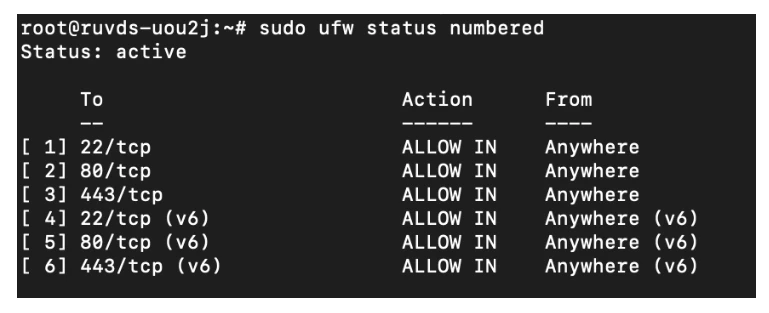
To inspect active rules:
sudo ufw status numbered
Think of UFW as a disciplined bouncer—only the invited guests get through.
htop — Real-Time Server Monitoring Tool
Monitoring system vitality becomes almost poetic with htop, a more expressive evolution of the classic top utility. It transforms raw metrics into a dynamic tableau.
Install and run:
sudo apt install htop
htop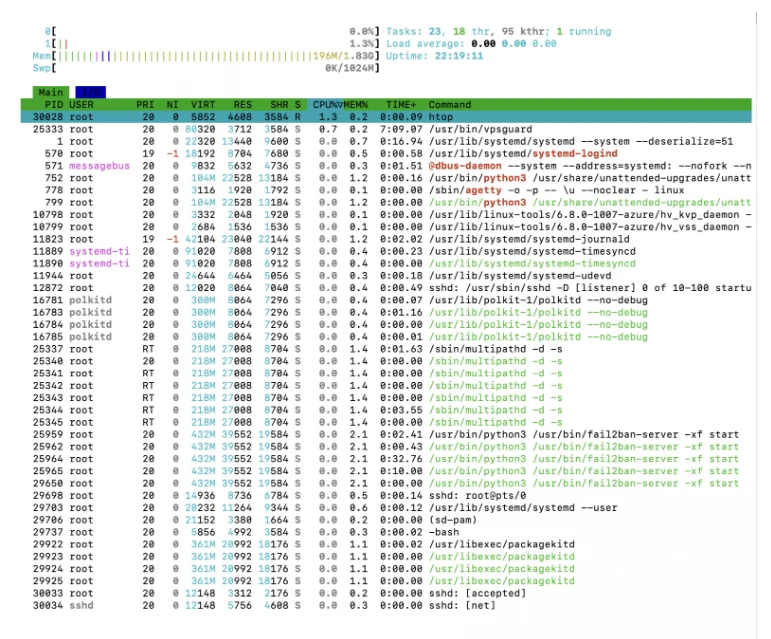
WAt the very top, we see:
The load on each core
Mem — the load on RAM
Swp — the use of virtual memory (when there is not enough RAM)
Tasks — the number of processes running at the same time
Load average — the average load over 1, 5, and 15 minutes
Uptime — the time the VDS has been running without a reboot.
Below is a list of the processes themselves. Key values:
PID — the ID of the process
USER — the user who started the process
RES — the amount of RAM consumed
CPU% / MEM% — the load on the processor and memory
TIME+ — the process running time
COMMAND — the command used to start the process.
To quickly end a specific process, simply select it and press F9.
To exit the monitoring, simply press q.
Monit — Automatic Server Monitoring & Recovery
While htop observes, Monit acts. It doesn’t merely watch—it intervenes. If a service falters, Monit can revive it or notify you without hesitation.
Install it:
sudo apt install monit
Enable web access by editing:
sudo nano /etc/monit/monitrc
Insert:
set httpd port 2812 and
    use address 0.0.0.0
    allow admin:password
Restart:
sudo systemctl restart monit
Now, via your browser (http://<server_ip>:2812), you gain a dashboard of system health.
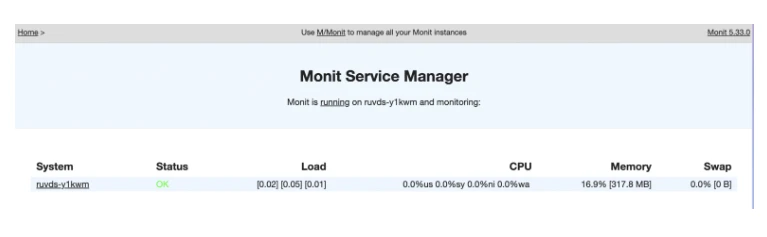
For example, configure Apache monitoring. If it stumbles, Monit resurrects it automatically—no human intervention required. A quiet guardian, always attentive.
Install Apache with the command (Example):
sudo apt install apache2
Open the Monit configuration file again:
sudo nano /etc/monit/monitrc
And at the very end, add the following:
check process apache2 with pidfile /var/run/apache2/apache2.pid
    start program = "/etc/init.d/apache2 start"
    stop program = "/etc/init.d/apache2 stop"
    if failed host 127.0.0.1 port 80 protocol http
        then restart
And restart Monit:
sudo systemctl restart monit
Now, when Monit can not connect to Apache on port 80, it will automatically restart the service. Open the web interface and see that a new line has appeared.
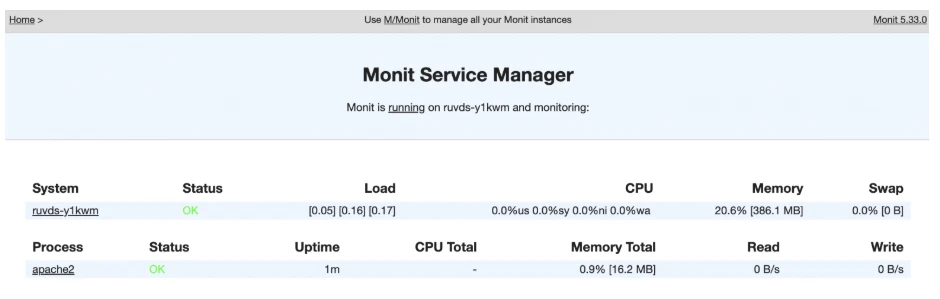
Stop Apache by running the command:
sudo systemctl stop apache2
After a few seconds, we see that the status in the web interface has changed from “OK” to “Does not exist”.
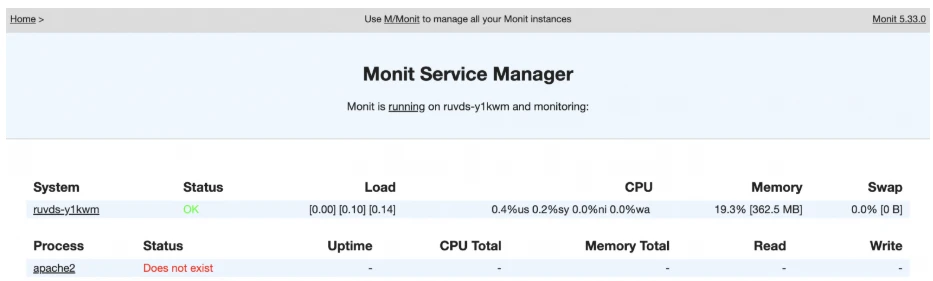
Wait a couple of minutes and Apache will automatically start.
Docker — Best Deployment Tool for VPS
And now, the crown jewel—Docker. A paradigm shift in deployment philosophy. Applications run inside isolated containers, each a self-contained microcosm with its own dependencies, untouched by neighboring environments.
Install prerequisites:
sudo apt install \
    ca-certificates \
    curl \
    gnupg \
    lsb-release
Add Docker’s official key and repository:
echo \
  "deb [arch=$(dpkg --print-architecture) \
  signed-by=/etc/apt/keyrings/docker.gpg] \
  https://download.docker.com/linux/ubuntu \
  $(lsb_release -cs) stable" | \
  sudo tee /etc/apt/sources.list.d/docker.list > /dev/null
Update the package list and then install Docker:
sudo apt update
sudo apt install docker-ce docker-ce-cli containerd.io docker-buildx-plugin docker-compose-plugin
Now, as an example, let’s run two containers with different versions of Python::
docker run -dit --name python310 python:3.10 bash
docker run -dit --name python311 python:3.11 bash
By running the docker ps? command, you can verify that both containers are running:

By running the command docker exec python310 python –version, we can see that Python 3.10.17 is installed in the container.
We do the same for the second container docker exec python311 python –version and see the version of Python 3.11.12.

Two environments, two Python versions—no conflict, no chaos. Pure isolation.
Docker thrives in scenarios like:
- Rapid deployment
- Replication of environments
- Safe experimentation
Even complex systems like GitLab can be deployed in a single command, encapsulated and ready.
Backup Tools — Protect Your Server Data
No system is complete without redundancy. Backups are not optional—they are insurance against the unpredictable.
Create a backup directory:
mkdir ~/backups
Generate a full archive:
sudo tar -cvpzf ~/backups/full_backup.tar.gz --exclude=/proc --exclude=/sys --exclude=/dev --exclude=/tmp --exclude=/run --exclude=/mnt --exclude=/media /
Verify its existence:
ls -l ~/backups/full_backup.tar.gz
Restoration, when needed, is equally straightforward:
sudo tar -xvpzf ~/backups/full_backup.tar.gz -C /
Store copies externally for added assurance—because redundancy is wisdom in disguise.
Closing Thoughts
This collection is not exhaustive, nor is it meant to be. Rather, it forms a reliable launchpad—a set of instruments that transform confusion into control. As your journey deepens, your toolkit will inevitably expand.
If you have indispensable utilities of your own, bring them into the conversation. The ecosystem thrives on shared insight.
Source: Wolfurud